

Reference images
A reference image shows the model what you mean: the real face from another shot, the product to place, the pattern that was really there. Fulla sends it along with your selection, and you name it in your prompt.
When does a reference help?
Section titled “When does a reference help?”When words aren’t enough to describe something that has to look exactly right:
- Bring back what was really there: a face from another frame of the same session, a sign or a pattern hidden behind a passer-by.
- Place a real object: your product, your mug, at the place and size of your selection. Give the selection the proportions of the object with its shadow (see Select generously).
- Match a material: the wood of the next table, the fabric of a dress.
For a background that only needs to look plausible, a reference isn’t needed.
Add a reference
Section titled “Add a reference”- Click the image button right of the model button, under the prompt.
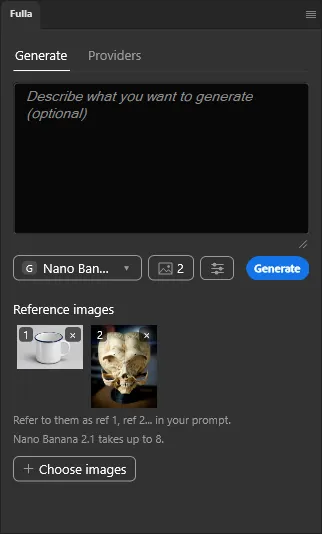
- Click Choose images and pick one or more files. Each one gets a number: 1, 2, 3…
- Name them in your prompt, then click Generate.
How do I name a reference in my prompt?
Section titled “How do I name a reference in my prompt?”By its number: ref 1, ref 2. With a single reference, the reference works too. For example:
put the mug from ref 1 on the tableuse the face from ref 2
Numbers don’t move: remove ref 1 and ref 2 is still ref 2, so a prompt you wrote earlier still means the same image.
Where are references kept?
Section titled “Where are references kept?”In the document itself, in a hidden layer group called Fulla references, one layer per image. They are saved with the document, follow it when you switch documents, and Ctrl+Z removes one like any other edit.
How many can I add?
Section titled “How many can I add?”| Limit | Value |
|---|---|
| References per document | 8 |
| References sent with one image | As many as the model takes; the panel says how many |
| Size sent to the model | Up to 2048 px on the long side |
References past the model’s limit stay in the document but aren’t sent.