

Remove and extend
With an empty prompt, Fulla removes what you select and fills the area from what surrounds it. The same works for an empty area after you enlarge the canvas.
Remove something
Section titled “Remove something”- Select the object or person to remove, with a little room around it, and its shadow if it has one.
- Leave the prompt empty.
- Click Generate.
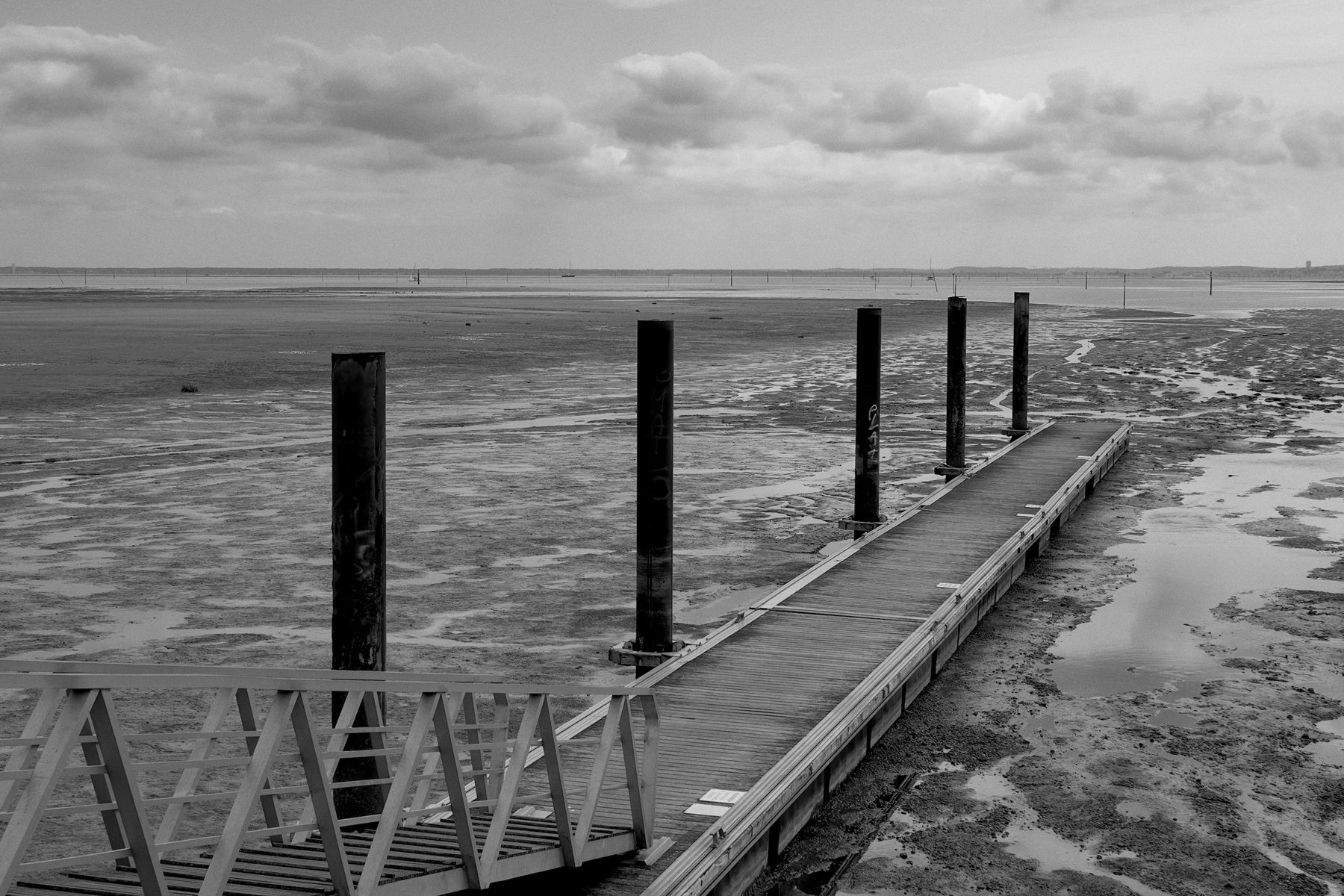
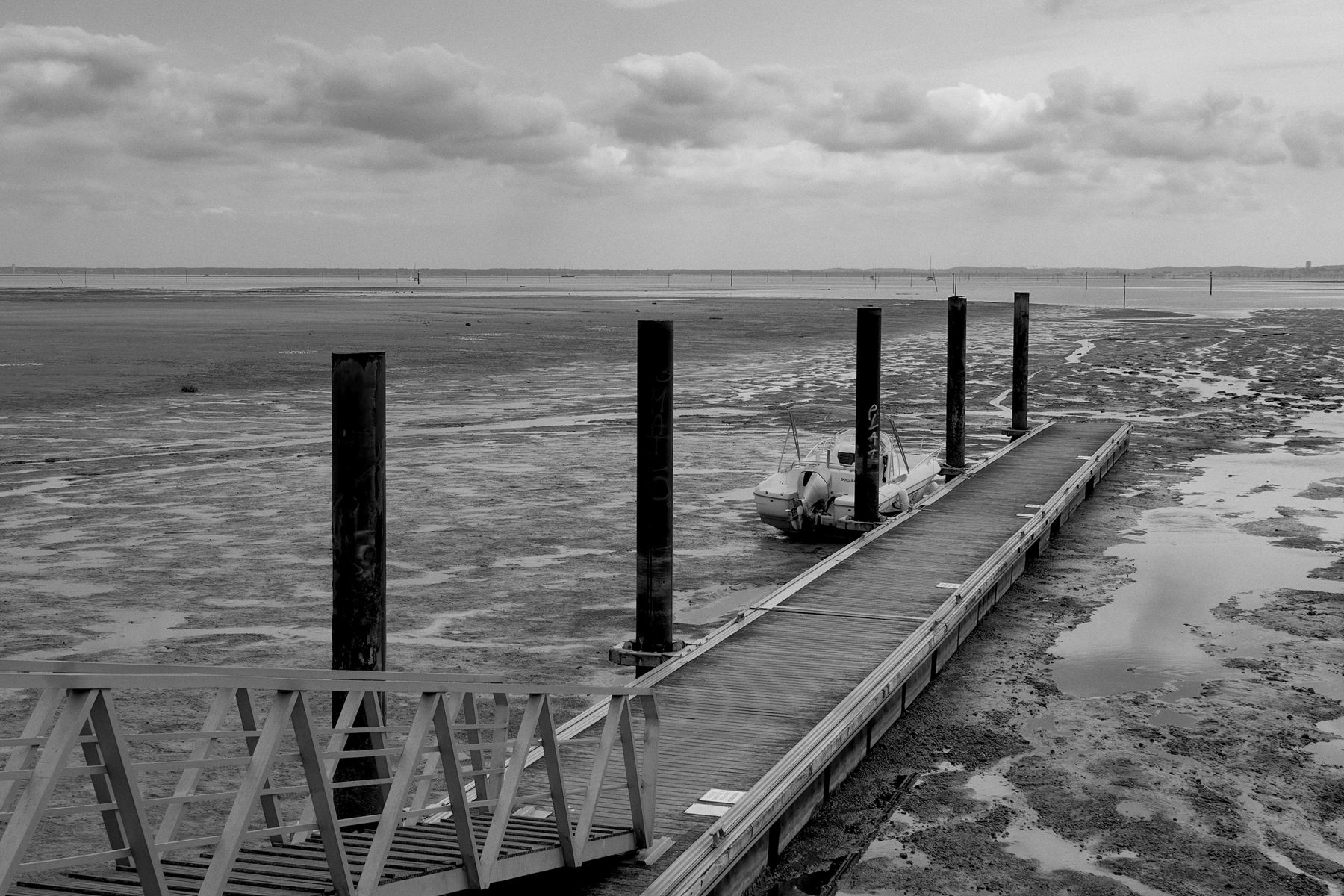
A motorboat removed from a pier photo. Prompt left empty. First try, Nano Banana 2.1, 2K, $0.06.
Extend a photo
Section titled “Extend a photo”- Enlarge the canvas in Photoshop (Image > Canvas Size).
- Select the new, empty area. It can stop at the photo’s edge or overlap it a little: either way, the empty pixels are fully covered.
- Leave the prompt empty and click Generate.
Extend one side at a time. Fulla sends the model the rectangle around the selection: for one side, a band the model can fill sharply; for two sides at once, nearly the whole picture, so a higher resolution and price for the same sharpness, or less detail. To add something in the new area, describe it instead of leaving the prompt empty.
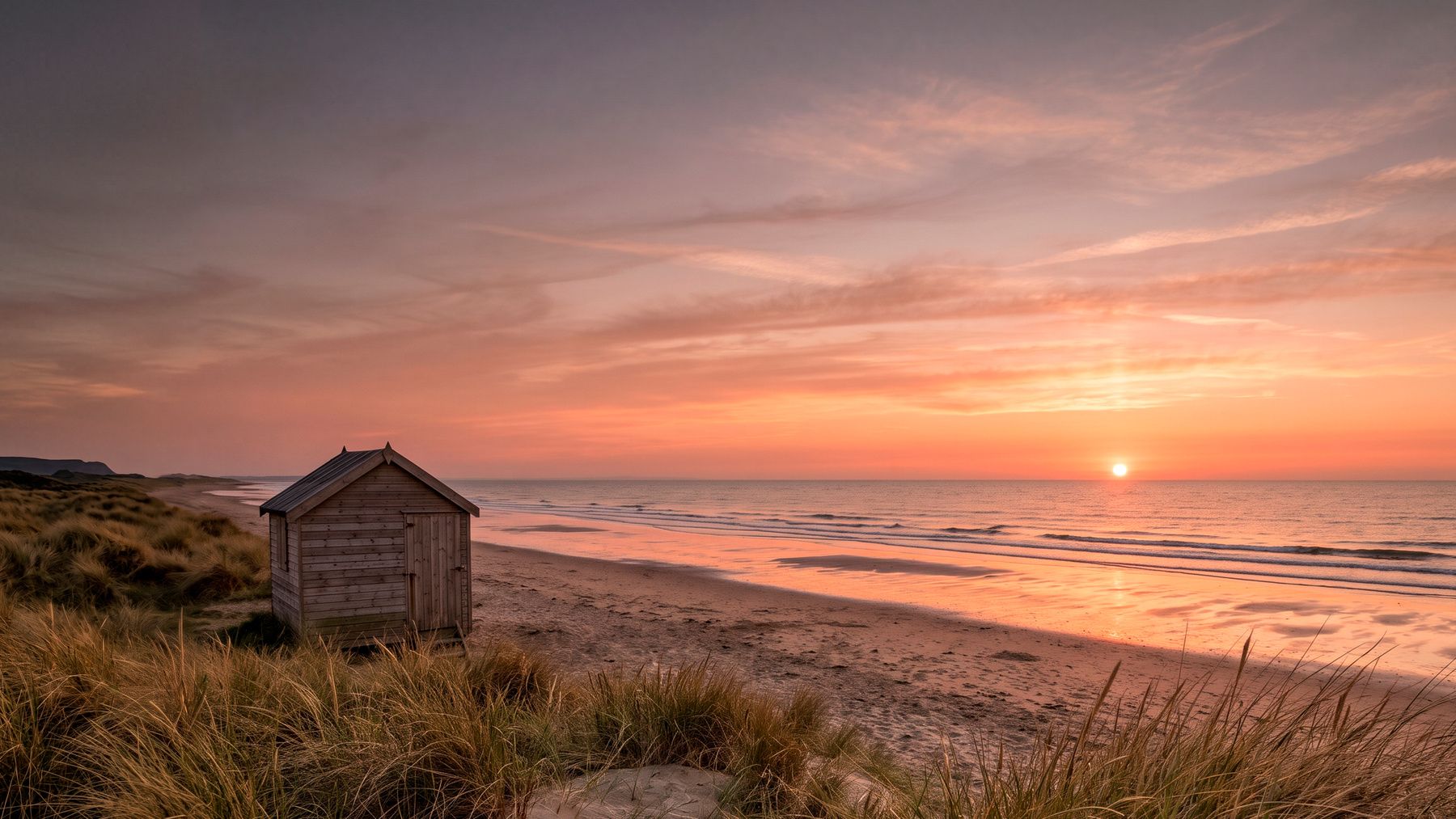
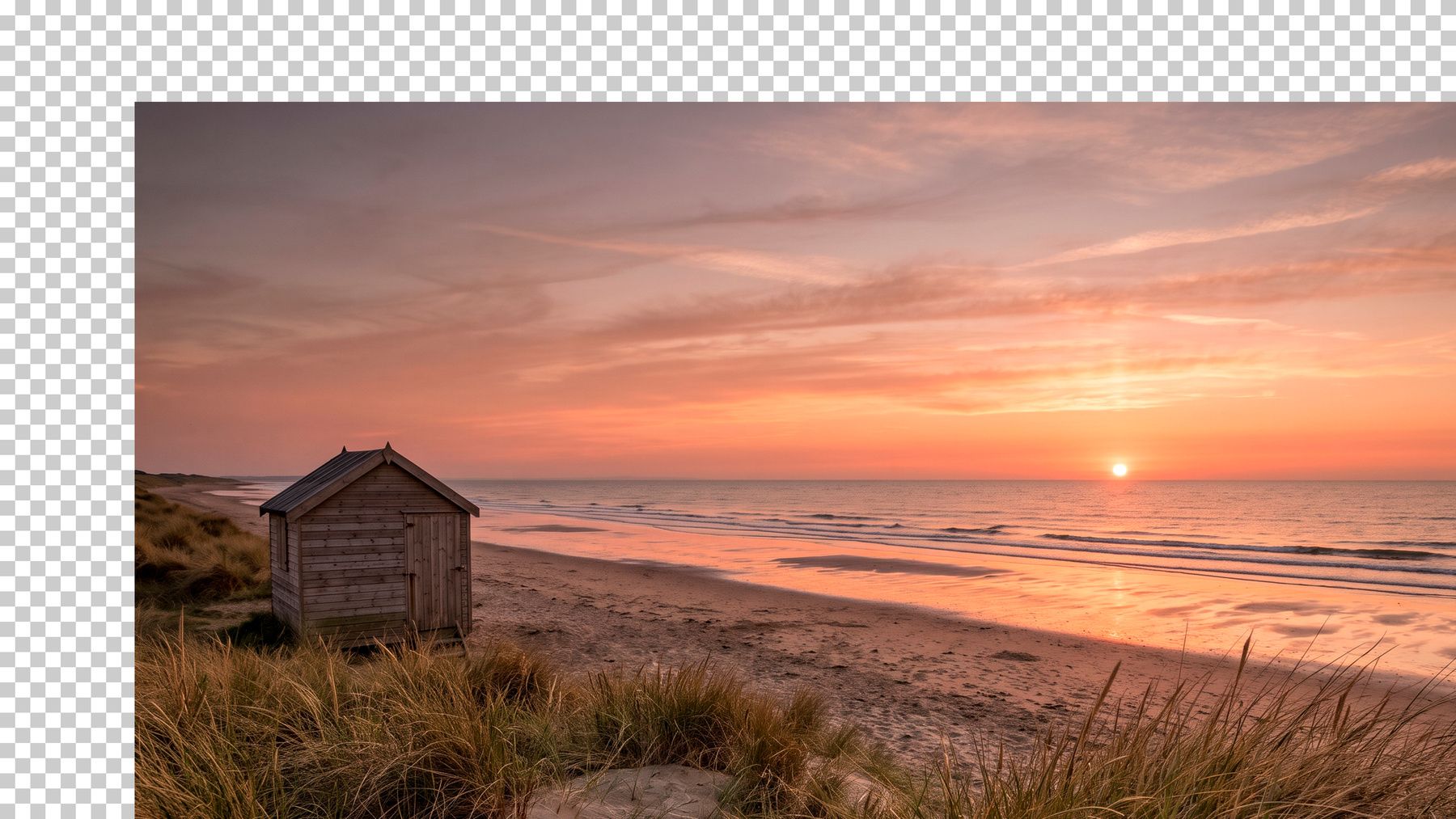
A beach photo extended to the left, then at the top, one band at a time. Prompt left empty. First try for each band, Nano Banana 2.1, 4K, $0.12 each. Sample photo generated for this demo.